
What is Advanced search?
Search RenewMap for projects, organisations, transmission lines, substations and places using natural language, with AI-powered filter suggestions.
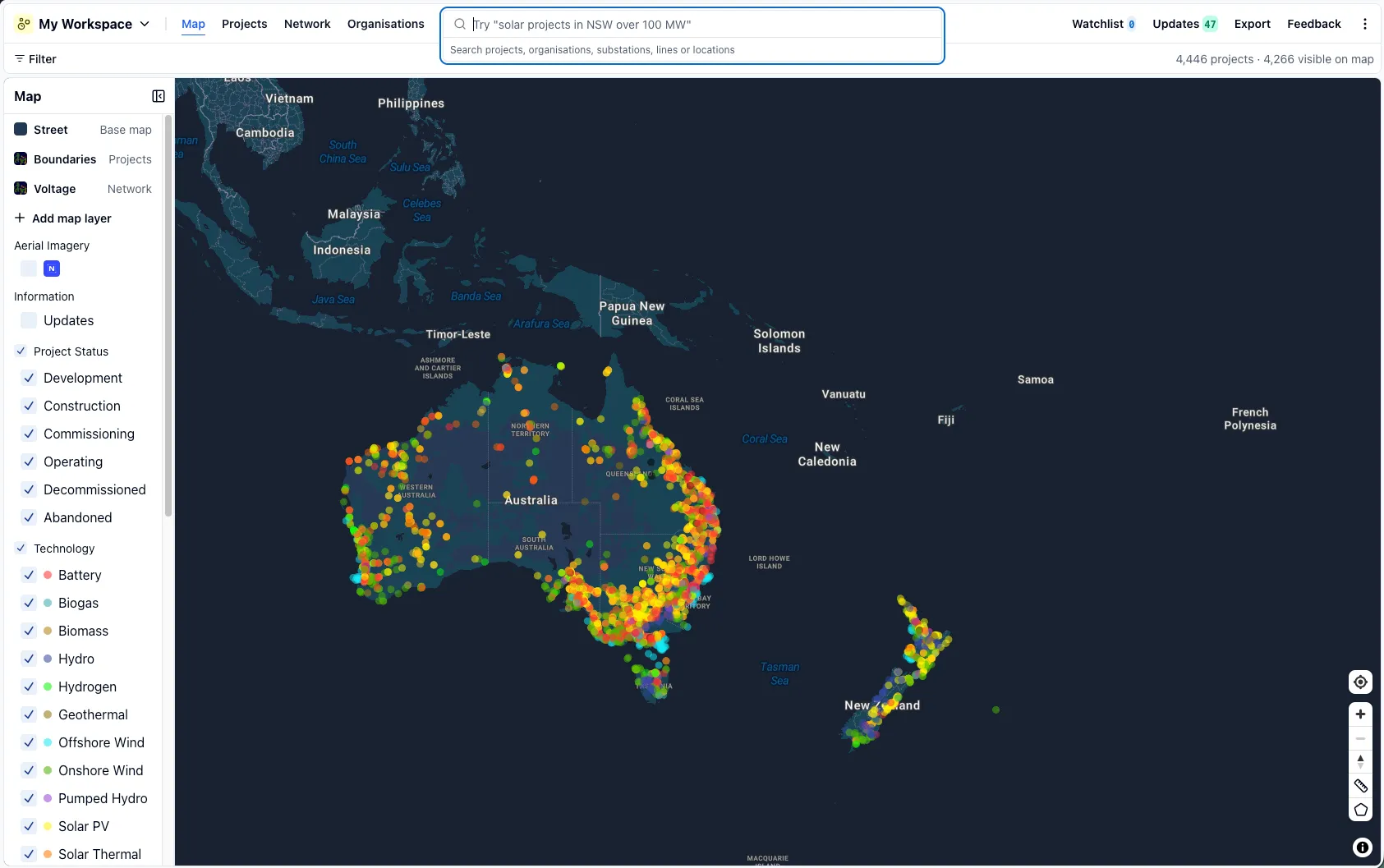
Advanced search lets you find anything on the map from one search bar: projects, organisations, transmission lines, substations, and places and locations. As you type, RenewMap also interprets your query in natural language and suggests filters that match what you’re looking for.
How to search
- Select the search bar at the top of the map, or press ⌘K (CtrlK on Windows).
- Start typing. A list of quick suggestions appears below the search bar.
- Select a suggestion to jump straight to it, or select Search “your query” (or press Enter ⏎) to see the full results, including locations and network.
Search suggestions
As you type, RenewMap shows a short list of quick suggestions directly below the search bar, so you don’t always need to open the full results.
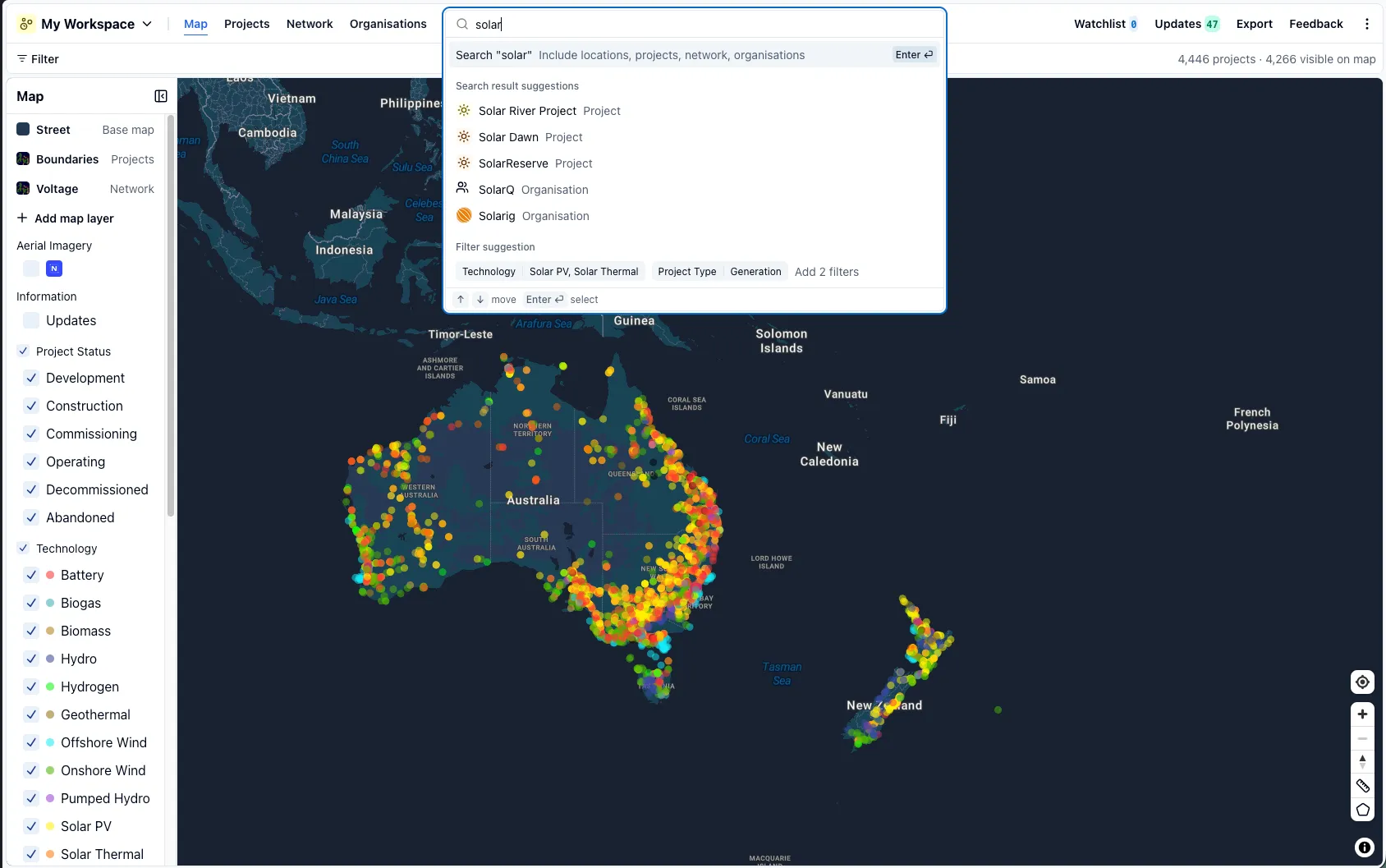
- Recents: your most recent searches and selections, shown when the search bar is empty.
- Search result suggestions: the closest matching projects, organisations and substations for your query.
- Filter suggestion: the same natural language filter suggestion described below, so you can add it without leaving the dropdown.
Use the arrow keys to move between suggestions and Enter ⏎ to select one, or select Search “your query” at any time to see the full results panel, which also includes matching locations and transmission lines.
Search for places and locations
Alongside projects and infrastructure, advanced search also matches places and locations, such as suburbs, towns, regions and addresses. You can also paste in raw coordinates (e.g. -33.8, 151.2) to search around a specific point.
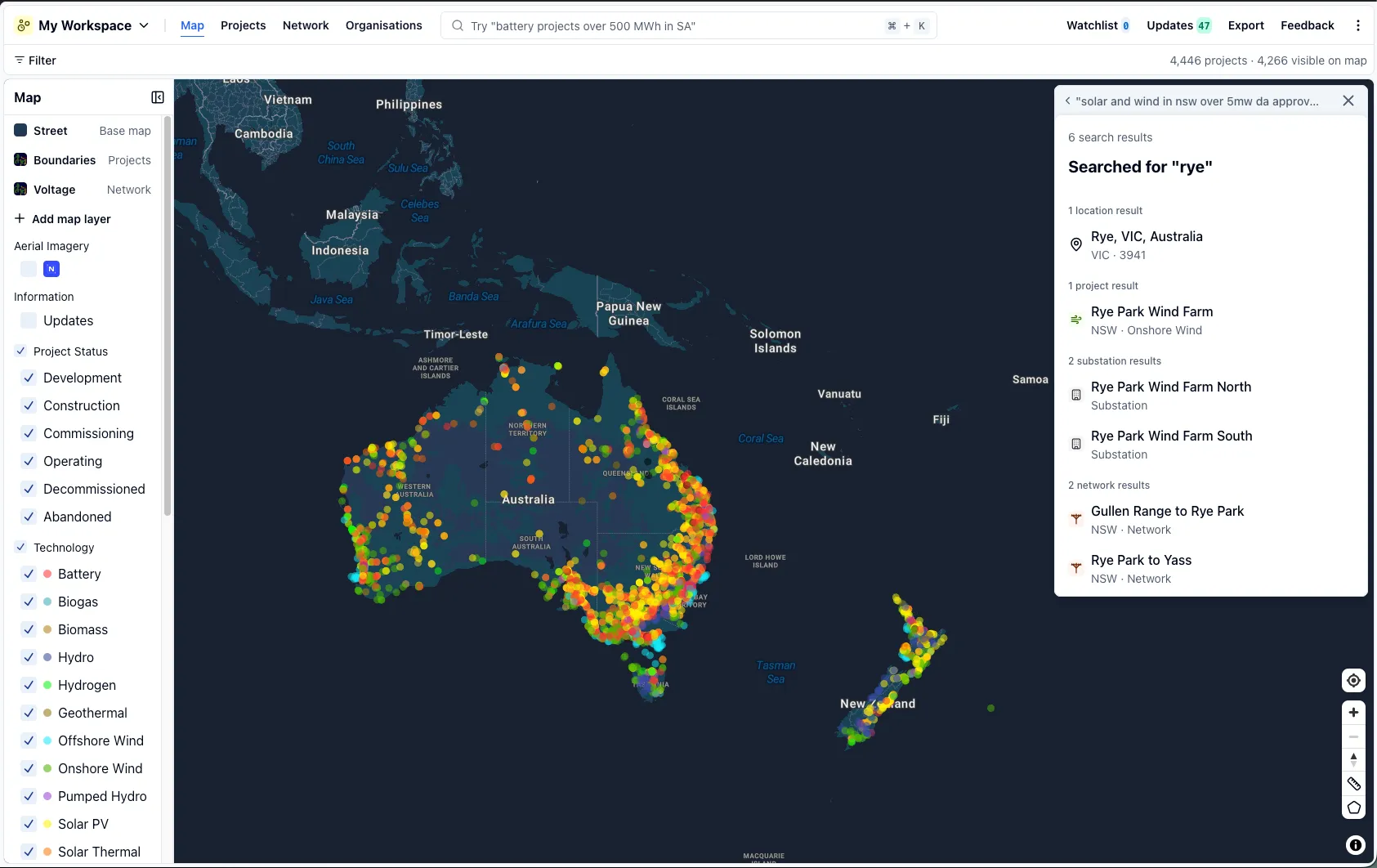
What happens when you select a result depends on what it is:
- Places and locations: the map flies to and zooms in on the location, with a marker dropped on the spot.
- Projects and infrastructure: the map flies to the project or transmission line’s actual boundary, point or line geometry, rather than dropping a marker.
Get filter suggestions with natural language
Advanced search reads your query and suggests filters to help you narrow the map down, even if you didn’t set out to build a filter. Try describing what you’re after in plain language, for example:
- “solar projects in NSW over 100 MW”
- “battery storage under construction”
- “wind projects with DA approved in 2023”
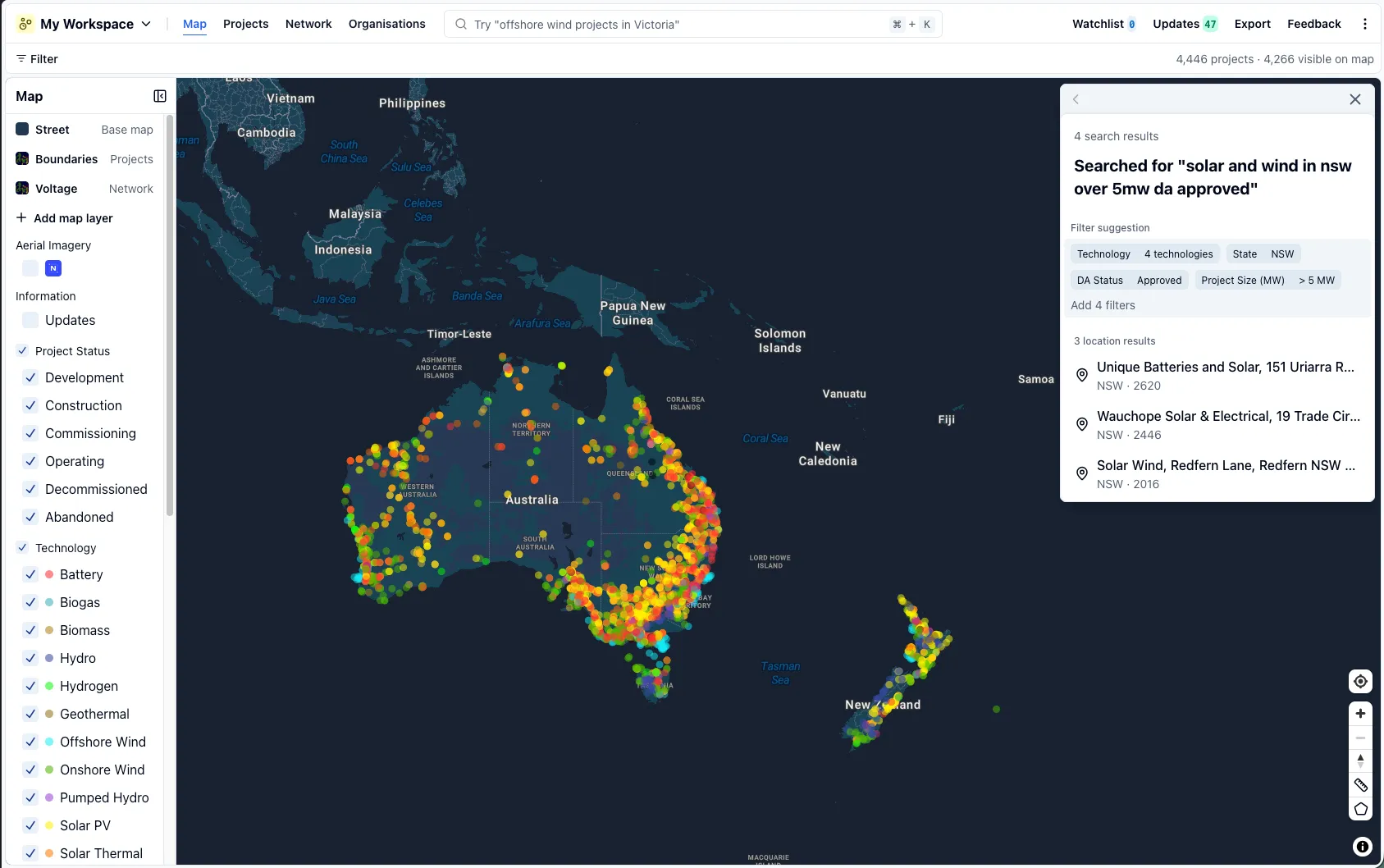
If RenewMap recognises filters in your query, a Filter suggestion banner appears above your search results showing the filters it found. Select it to add those filters to the map and table.
Adding a suggested filter set replaces your current filters for that data type, rather than adding to them. If you want your previous filters back, select Undo next to your active filters to revert the change.
A fast way to set up a workspace
Because a single natural language query can set up several filters at once, advanced search is a quick way to get a new workspace ready: describe the view you want, add the suggested filters, then save it as a workspace to return to later.
Note: Filter suggestions are an organisation-level feature. If you don’t see them, ask your organisation’s admin to enable Advanced search from the admin dashboard.