
What are filters?
Filter renewable energy projects, organisations and network on the RenewMap interactive map. Narrow the map and table to the projects that matter to you, with filters saved to your workspace.
Filters let you narrow the RenewMap map, and the table, down to the projects, organisations and network that matter most to you. Filters apply everywhere at once, so the map and table always show the same set of results.
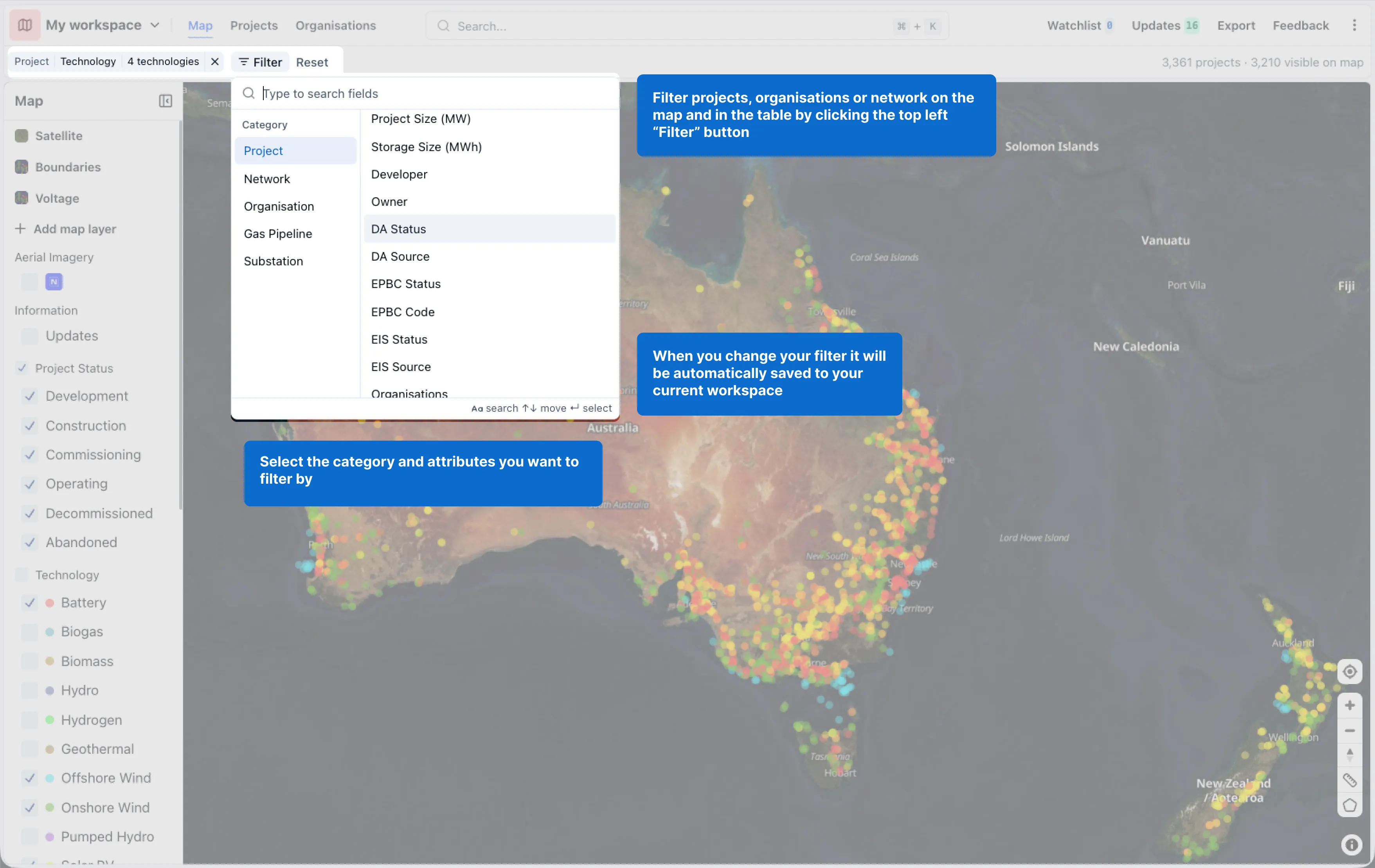
- Open filters by selecting the Filter button at the top left. Filters apply to projects, organisations and network on both the map and in the table.
- Choose a category (such as Project, Network or Organisation) and the attribute you want to filter by.
- Any filter you change is automatically saved to your current workspace, so your view is ready next time you return.
How to filter the map
We recommend starting broad and narrowing down from the most general attribute to the most specific. For example, a battery supplier might start by filtering project Technology to Battery.
To filter the map:
- Select the Filter button at the top left of the map.
- Choose the category for the attribute you want to filter by, such as Project, Network or Organisation.
- Select an attribute (for example, DA Status or Technology) and choose the values to filter by. The map and table update to show only the matching results.
For numeric fields, you can also type in and select your own filter (e.g. “> 10 MW” for Project Size) rather than using the default options. “Not blank” and “Blank” respectively filter to results that either have or do not have a value for that field.
Tip: RenewMap tracks a lot of data. It’s a good idea to review your filters occasionally to make sure you’re not narrowing too far. Using too many or overly specific filters may cause you to miss opportunities.